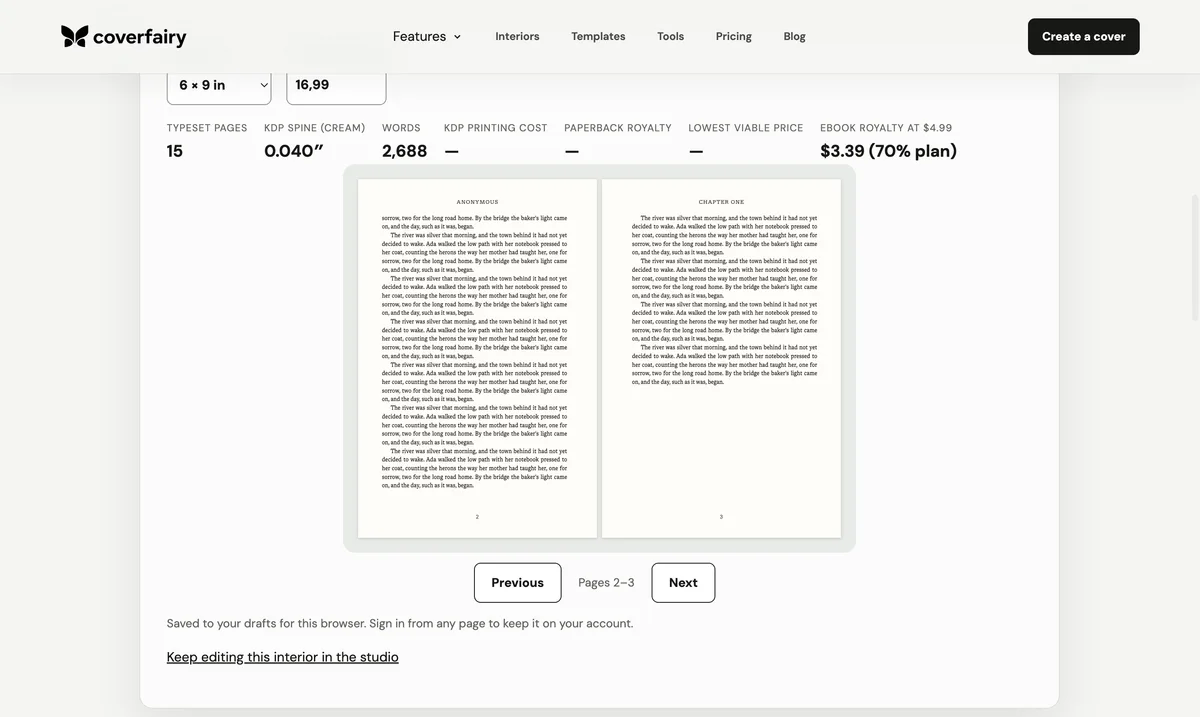

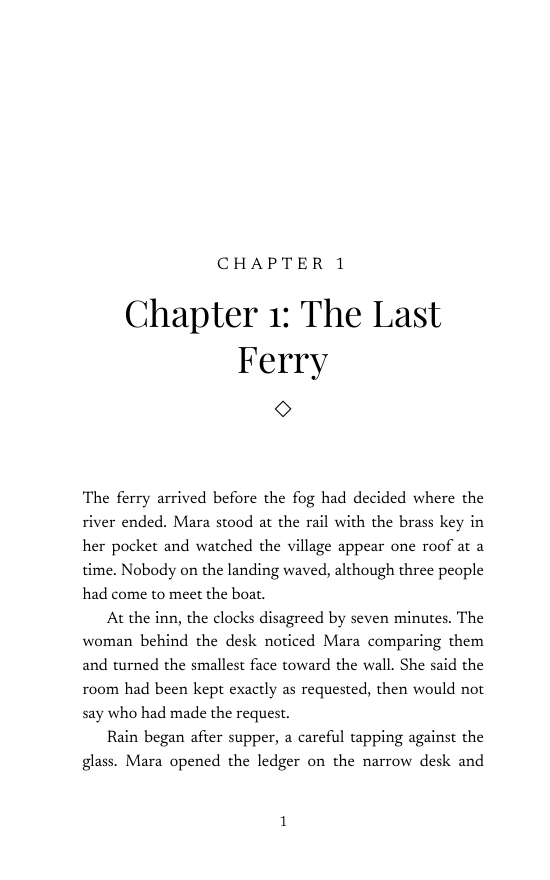
Google Docs is a comfortable place to write a book, especially with an editor or co-author leaving comments. The trouble starts when you want the pages to look like a printed book: the page is the size of office paper, and there is nowhere to type 6 × 9. This template solves the page size and sets up the styles a novel needs, so you can write and format in the same document.
Why Google Docs cannot make a 6 × 9 page by itself
Open File, then Page setup, and the paper sizes are fixed presets: Letter, Legal, A4, A5, Statement and a few others. Statement is 5.5 × 8.5 inches, a real paperback trim, but there is no 6 × 9 or 5 × 8 and no box for a custom size. Docs does keep a custom size that arrives in a Word file, which is why this template is a .docx. We opened the 6 × 9 template in Google Docs and downloaded it as a PDF: every page came out at exactly 6 × 9 inches, with the fonts embedded.
Open the template in Google Docs
Download the template, then in Google Drive choose New, File upload, and open the file with Google Docs. If the title shows .DOCX, choose File, then Save as Google Docs, so every Docs feature is available. Check that the document is in Pages mode rather than Pageless under File, then Page setup; pageless mode hides page numbers and page breaks. You can also open the same file in Word or Apple Pages.
Paste your manuscript without breaking the styles
Paste each chapter under its Chapter heading using Edit, then Paste without formatting, so the text takes on the template's Normal text style instead of the fonts from wherever you copied it. Set every chapter title to Heading 1: the style starts a new page and centres the title for you. Start the first paragraph after each heading with the First Paragraph style, which removes the indent, and use the centred * * * line for scene breaks. Avoid pressing Enter to reach a new page; a later edit will push those blank lines out of place.
Margins: the one thing Google Docs cannot do
Printed books use mirrored margins, with the wider margin on the inside of every page where the binding is. Google Docs has no mirrored margins or gutter, so the template's wider 0.75-inch margin stays on the left of every page and the 0.5-inch margin on the right. On left-hand pages the inside margin is therefore 0.5 inches. KDP's minimum inside margin is 0.375 inches up to 150 pages and 0.5 inches up to 300 pages, so this works for most novels. For a longer book, set both side margins to at least the KDP minimum for your page count, or move to a tool with mirrored margins.
Front matter, page numbers and sections
Docs can give the first page its own header and footer and can use different odd and even headers. The template already leaves the title page unnumbered. To keep numbers off all the front matter, insert a section break (next page) before Chapter One, unlink the footer, and restart numbering at 1 under Insert, then Page numbers. Section breaks also let you change margins for one section only.
Download the print PDF and check it
Choose File, then Download, then PDF. Open the PDF and check the page size, the first and last pages, the chapter openings and any italics. Upload it to your printer's previewer, KDP's Print Previewer for example, and order a printed proof before you publish. Use the final page count from that PDF to calculate the cover spine. Docs can also download an EPUB, but test it in an ebook reader before you upload it.
When to move to a book formatter
Docs is good for drafting, sharing and simple layouts. Move to a book formatter when you need mirrored margins, running heads with the book and author name on facing pages, chapter opener designs, drop caps, or a large-print or second-trim edition without rebuilding the file. Download your Doc as a .docx and import it into Coverfairy's formatter, which keeps your chapters and lets you switch trim sizes and themes while the page count updates.
Sources and verification
- Google Docs Help: change page settings
- Google Docs Help: headers, footers and page numbers
- Google Docs Help: section breaks
- Amazon KDP: trim size, bleed and margins
Requirements can change. Check the linked instructions before you publish or upload a file.
By Coverfairy Editorial · Published · Updated