

Free IngramSpark cover calculator and template
Enter the exact spine width from your official IngramSpark template to get the full cover size in inches and 300 ppi pixels, plus a free PNG or PDF planning template.
Check the full IngramSpark sheet size
Enter the spine shown on IngramSpark's title-specific template. This tool does not estimate it from paper type.
This is a paperback composition guide, not an upload-ready IngramSpark export. Hardcover, dust-jacket, and other binding geometry must come directly from the current official template.
Templates show the bleed, trim, spine, fold zones and safe area at full size. Keep IngramSpark's own template as the final check; it places the barcode for your title.
Already have a front cover?
Upload it and Coverfairy builds the spine, back cover and barcode area around it at these IngramSpark dimensions. Preview free; download the print PDF with a pass.
JPG, PNG or WebP · up to 15 MB · no account needed
Sources: IngramSpark cover template generator. Reviewed ; recheck the official page before production.
Calculator, planning template or official template: what each one is for
| Tool | Use it when | Output |
|---|---|---|
| Coverfairy calculator and template | You need the full sheet size and a layer to design over | Width and height in inches and 300 ppi pixels, plus PNG, PDF and SVG templates |
| Official IngramSpark generator | You need the title-specific production authority | The current template, exact spine and barcode placement for the book setup |
Worked 6 × 9 exampleWith 0.125-inch bleed and a 0.500-inch spine copied from the official template, a paperback sheet is 12.750 × 9.250 inches, or 3,825 × 2,775 pixels at 300 ppi. The arithmetic verifies size; it does not replace IngramSpark's safety lines, barcode area, color requirements, or title-specific template.
Use the calculator as a measurement check both before and after design. First, confirm that the planning canvas agrees with the trim, spine, and bleed recorded for the title. After export, check the PDF sheet again and compare its guides with the official template. If pagination, paper, binding, or trim changes, stop and regenerate the title-specific template before adapting the artwork. That discipline matters for revised editions too: an old cover can look identical on screen while its spine and outer edges are no longer correct for the new interior. Record the template date and final page count with the exported files so the edition can be reconstructed later.
FROM MANUSCRIPT TO COVER PDF
The safe IngramSpark production sequence
The calculator is one checkpoint in a five-stage handoff. Following the order prevents a correct-looking front cover from being attached to the wrong spine or sheet. It also leaves a clean chain of identifiable artifacts—the final interior, official template, editable cover, audited PDF, and proof record—for corrections and future editions.
- 1Format the interior
Use the real PDF page count; a manuscript estimate cannot lock the spine.
Open this step - 2Generate the official template
Enter the final title setup in IngramSpark and download its current template.
Open official generator - 3Copy the supplied spine
Enter that exact width above instead of substituting a KDP paper multiplier.
Return to calculator - 4Build the editable cover
Keep the panels, spine type, barcode clearance, and bleed adjustable while you compose.
Open this step - 5Audit the production PDF
Overlay or compare it with the official template before upload and after every pagination change.
Open this step
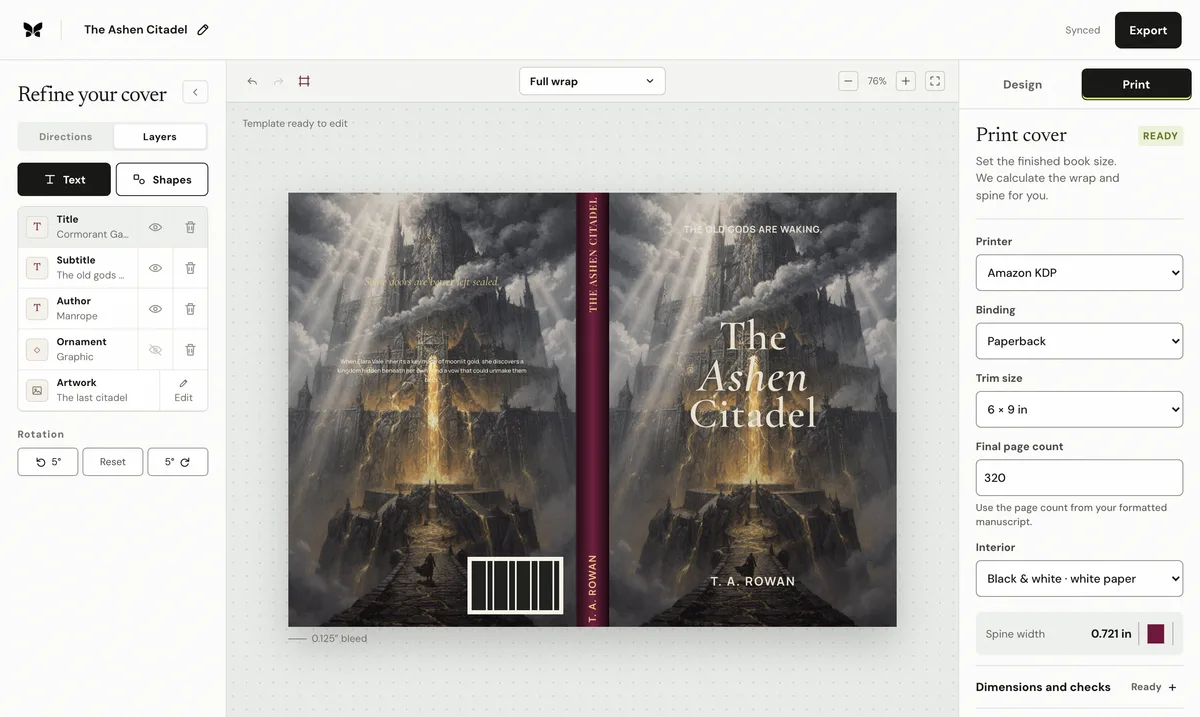
Quick answerAn IngramSpark cover calculator combines trim, bleed, and the exact spine width from the official title-specific template to show the complete paperback sheet in inches and 300 ppi pixels. It checks the geometry without estimating IngramSpark paper thickness. Download the result as a PNG or PDF planning template
How do you make an IngramSpark cover template?
Create the title-specific template in IngramSpark first, using the book's final binding, trim, interior, paper and page count. Copy its exact spine width into this calculator, confirm the trim, and download the PNG or PDF planning template. It marks the bleed, trim, folds, spine and a safe area so you can compose the full sheet at the correct size; the official IngramSpark template remains the production authority and shows the barcode placement.
What does the IngramSpark cover calculator calculate?
It adds the back panel, official spine width, front panel, and outside bleed to produce the complete sheet width and height. It also converts that sheet to 300 ppi pixel dimensions for planning. The result makes the geometry auditable, while IngramSpark's downloaded template remains the final production authority.
Why does the calculator ask for an exact spine width?
IngramSpark calculates the spine for the book's title-specific production setup. A KDP paper multiplier belongs to KDP and should not be reused. Copy the spine measurement from the current IngramSpark template after the interior is final, then recalculate if the setup or pagination changes.
What should you verify after calculating?
Compare the finished cover PDF with the official template: page size, bleed, folds, safety areas, barcode zone, image resolution, and the 48-page spine-text threshold. A matching width alone does not prove that every production element is correctly placed.
How do you read the official template without moving its lines?
Open the downloaded template at its stated size and identify the complete page boundary, trim or board edges, spine edges, safety areas, barcode location, and any provider notes. Place it as a locked top layer or compare it against the exported PDF without scaling. If a design application asks whether to fit, fill, or resize the template, stop: the document was not created at the correct physical size. Measure the PDF page itself after export, because a visually aligned screenshot can still sit on the wrong MediaBox.
What belongs on the back, spine, and bleed?
Let background art or color continue through the outside bleed and across panel transitions, but keep the blurb, author biography, endorsements, logo, faces, and other critical details inside the template's current safe areas. Reserve the designated barcode region and do not place a decorative ISBN or QR code underneath it. On books below IngramSpark's stated spine-text threshold, let the art cross the spine without lettering; for eligible books, center the title and author within the actual spine rather than the overall sheet.
Why should you audit the PDF again after a correction?
A late typesetting change can alter the page count and the official spine, while a cover edit can change image resolution, color conversion, font embedding, transparency, or the PDF page box. Return to the source document, regenerate the affected file, and repeat the whole comparison instead of patching the exported PDF. Archive the final interior, official template, editable cover, output PDF, and proof date together so the next edition starts from an identifiable production state rather than an unexplained file in a downloads folder.
Frequently asked questions
What does the IngramSpark cover calculator need?
Enter the trim, bleed, and exact spine width from IngramSpark's current title-specific template. The calculator does not estimate the spine from page count.
What does the calculator return?
The complete paperback sheet width and height in inches and at 300 ppi, including the back, spine, front, and outside bleed.
Is the calculated sheet ready to upload?
No. Use it to plan and audit the geometry, then compare the finished PDF with IngramSpark's official template before upload.
Can I download an IngramSpark cover template here?
Yes. After you enter the official spine width, download a PNG or PDF planning template with the bleed, trim, spine, fold zones and safe area marked. IngramSpark's own title-specific template remains the production authority and shows where the barcode goes.